How to Manage Vehicle Brands, Models, and Service Records in Invent ERP
Learn how to create and maintain vehicle records for automotive businesses and repair workshops.
Step-by-Step Process
Step 1: Navigate to Garage Management
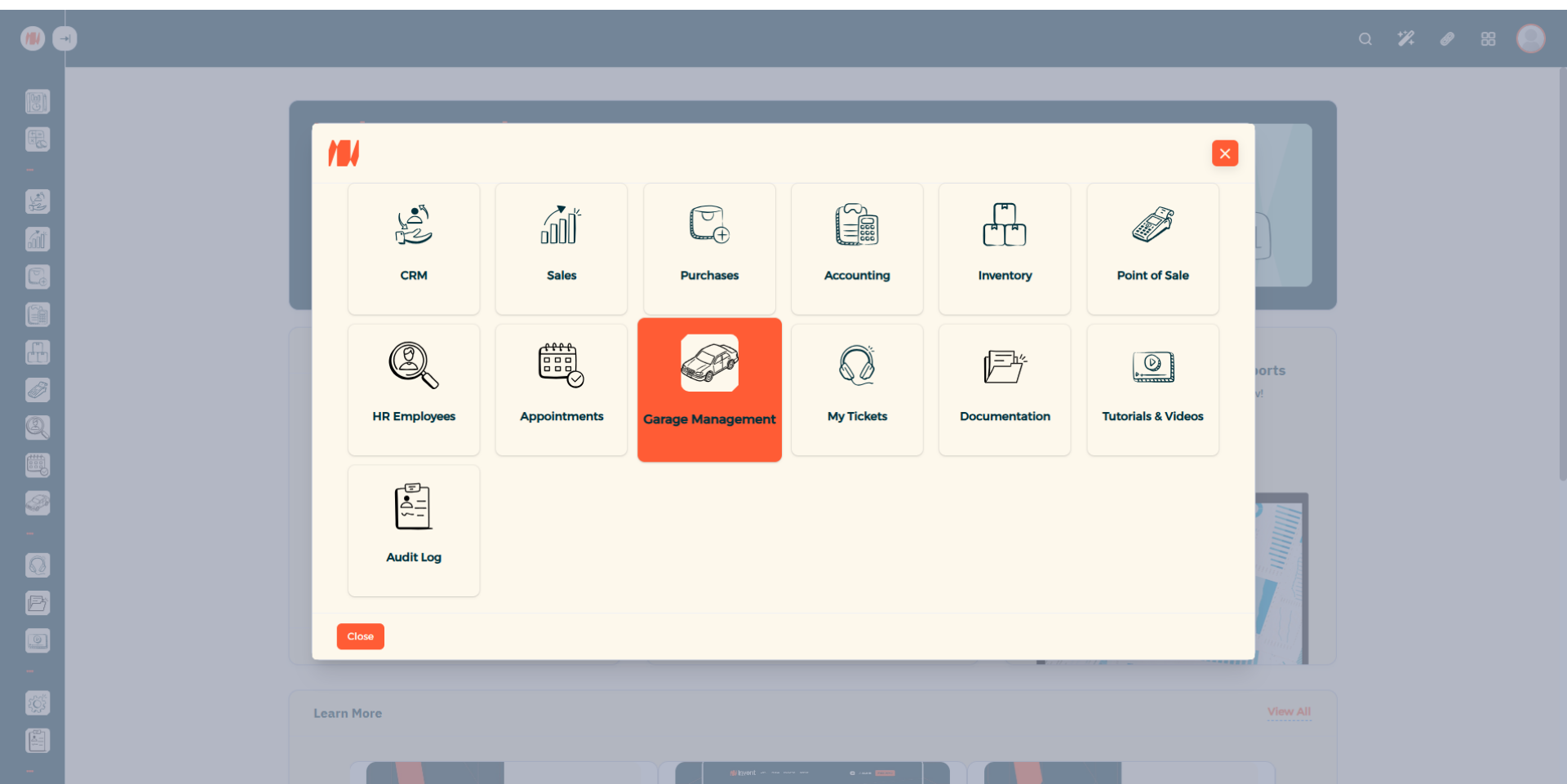
From the Main Menu, look at the top right corner then click on All apps. Then Select Garage Management.
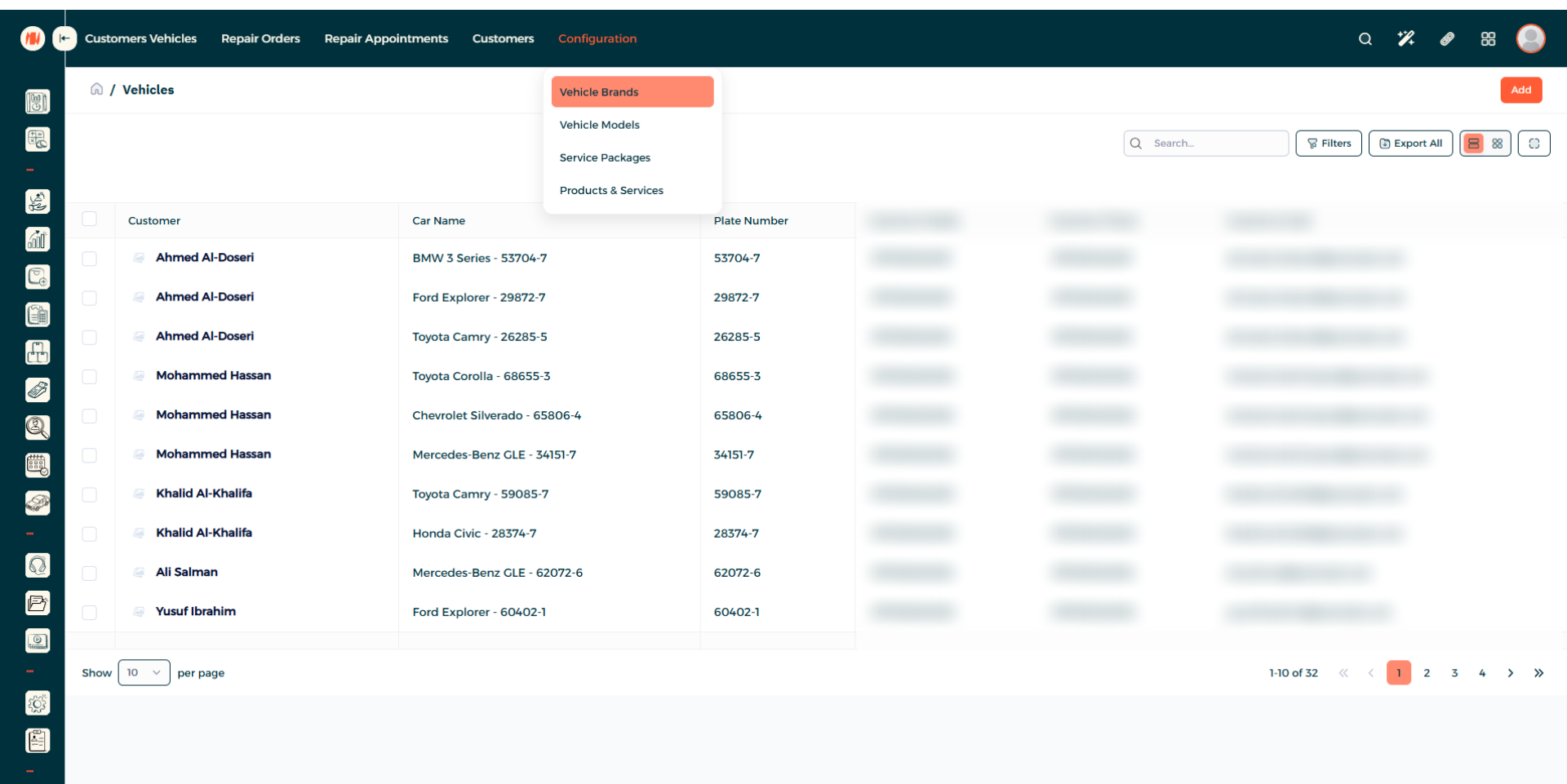
Step 2: Navigate to Vehicle Brands
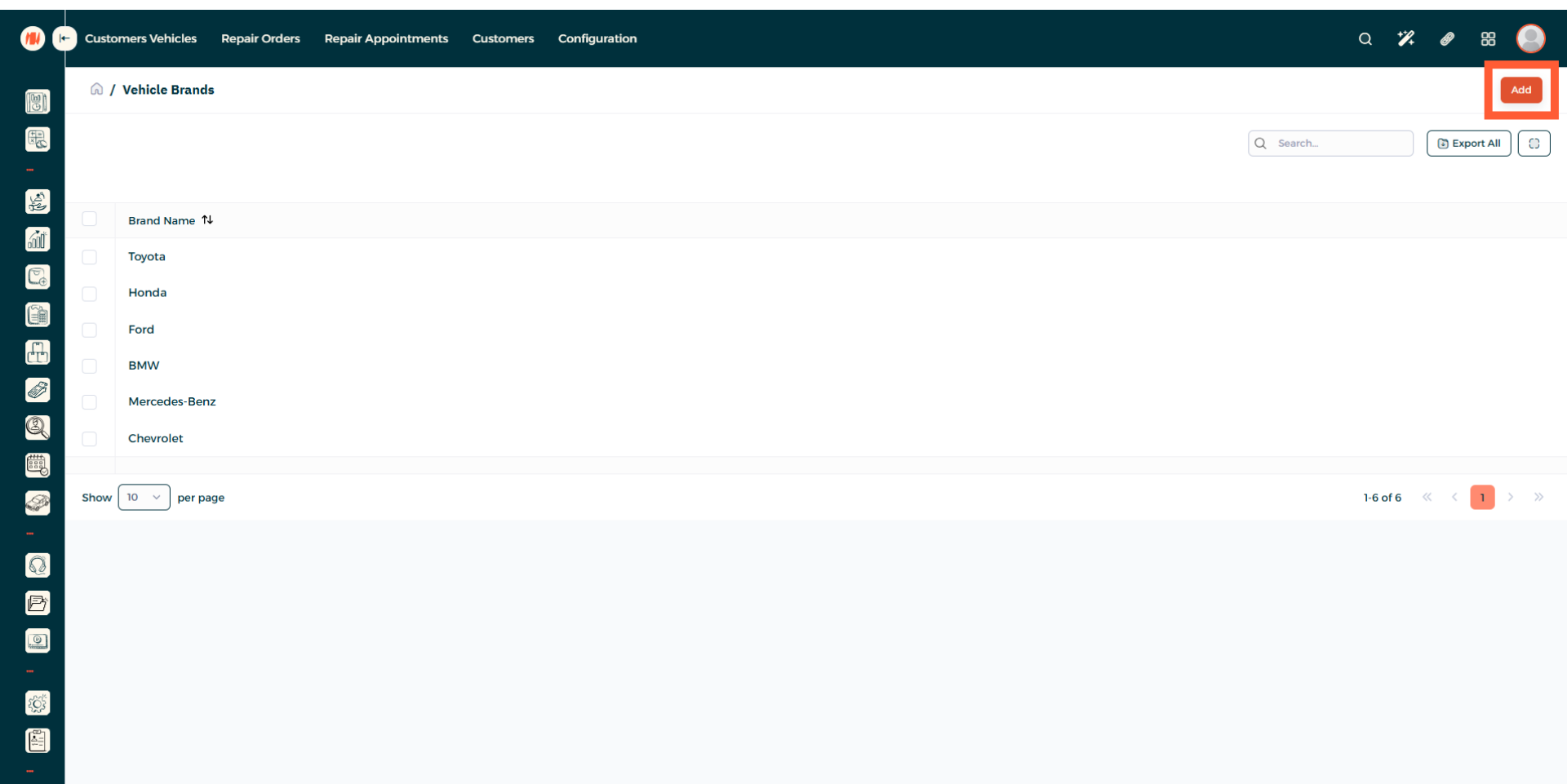
Step 3: Add a Vehicle Brand
Step 4: Add a Vehicle Brand name
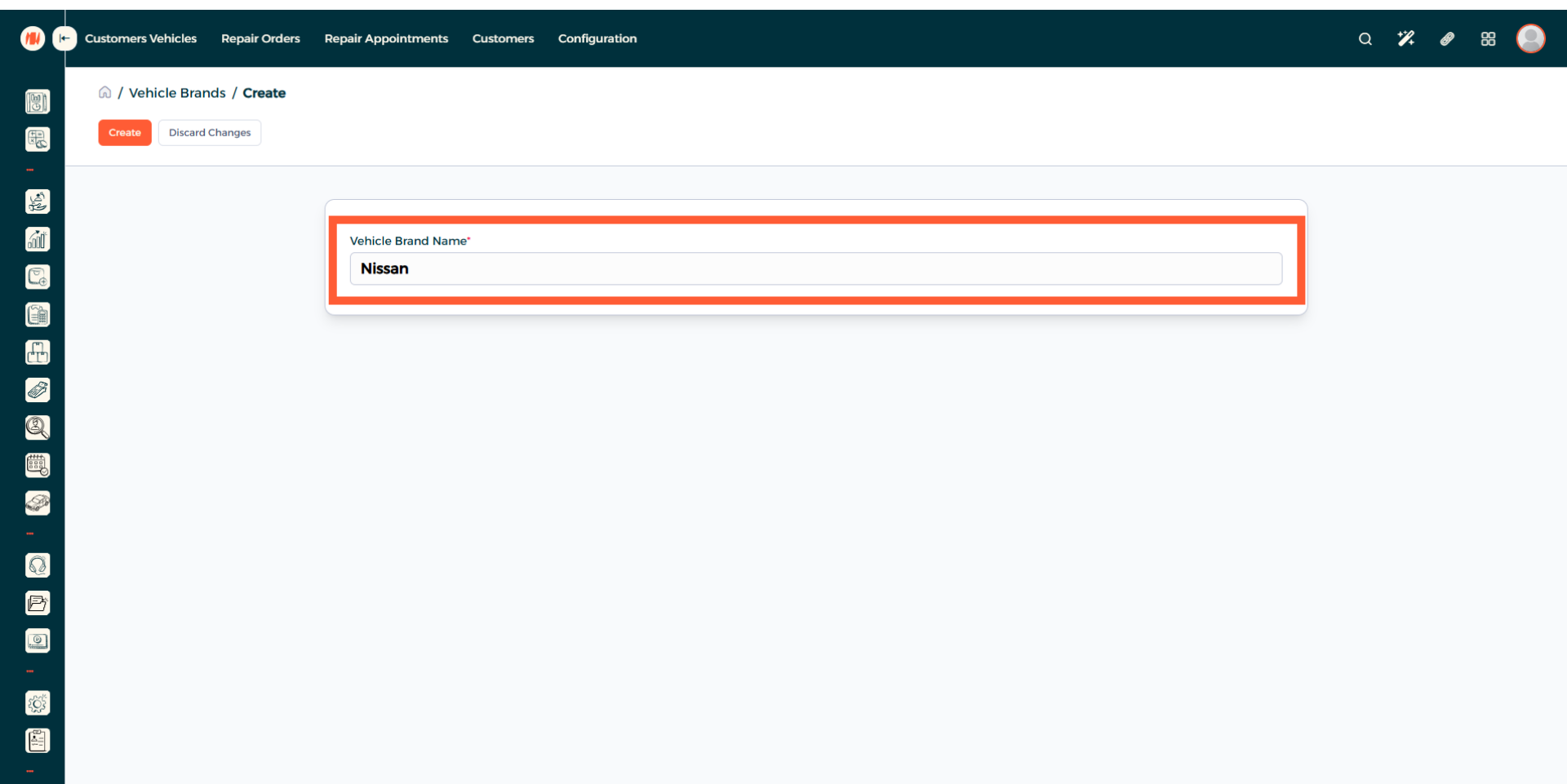
Step 5: Create Vehicle Brand
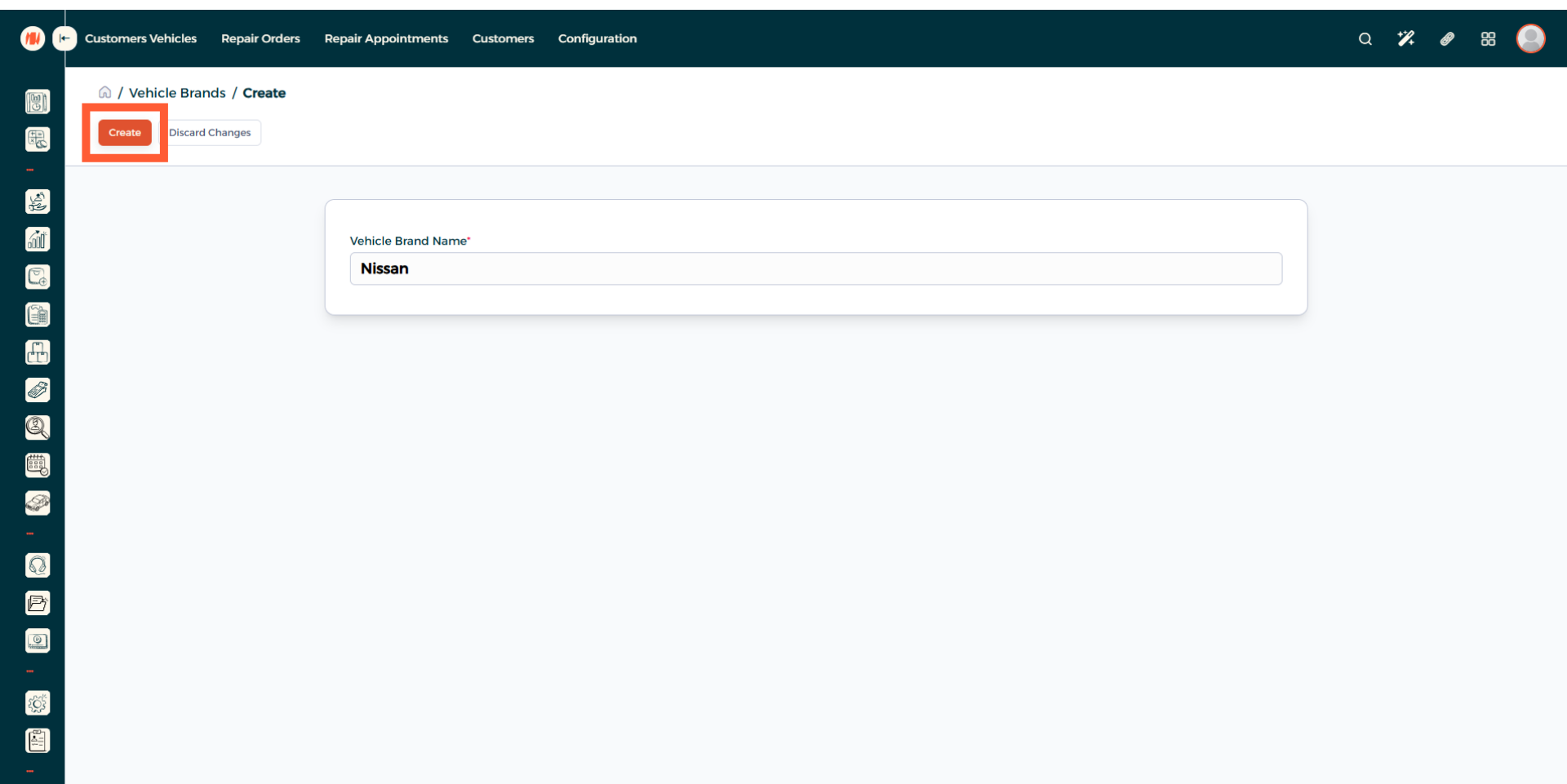
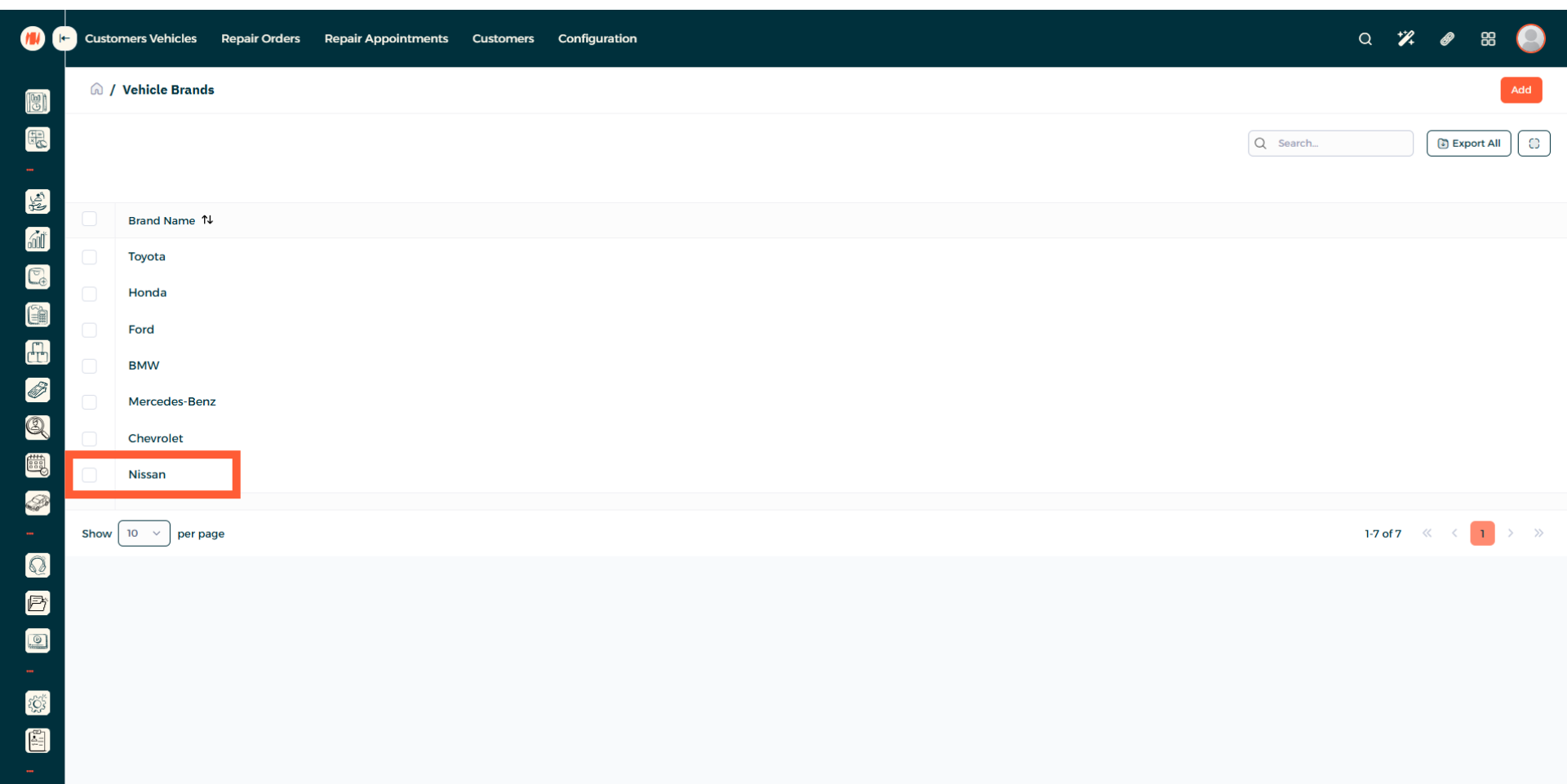
Step 6: View Vehicle Brand creation
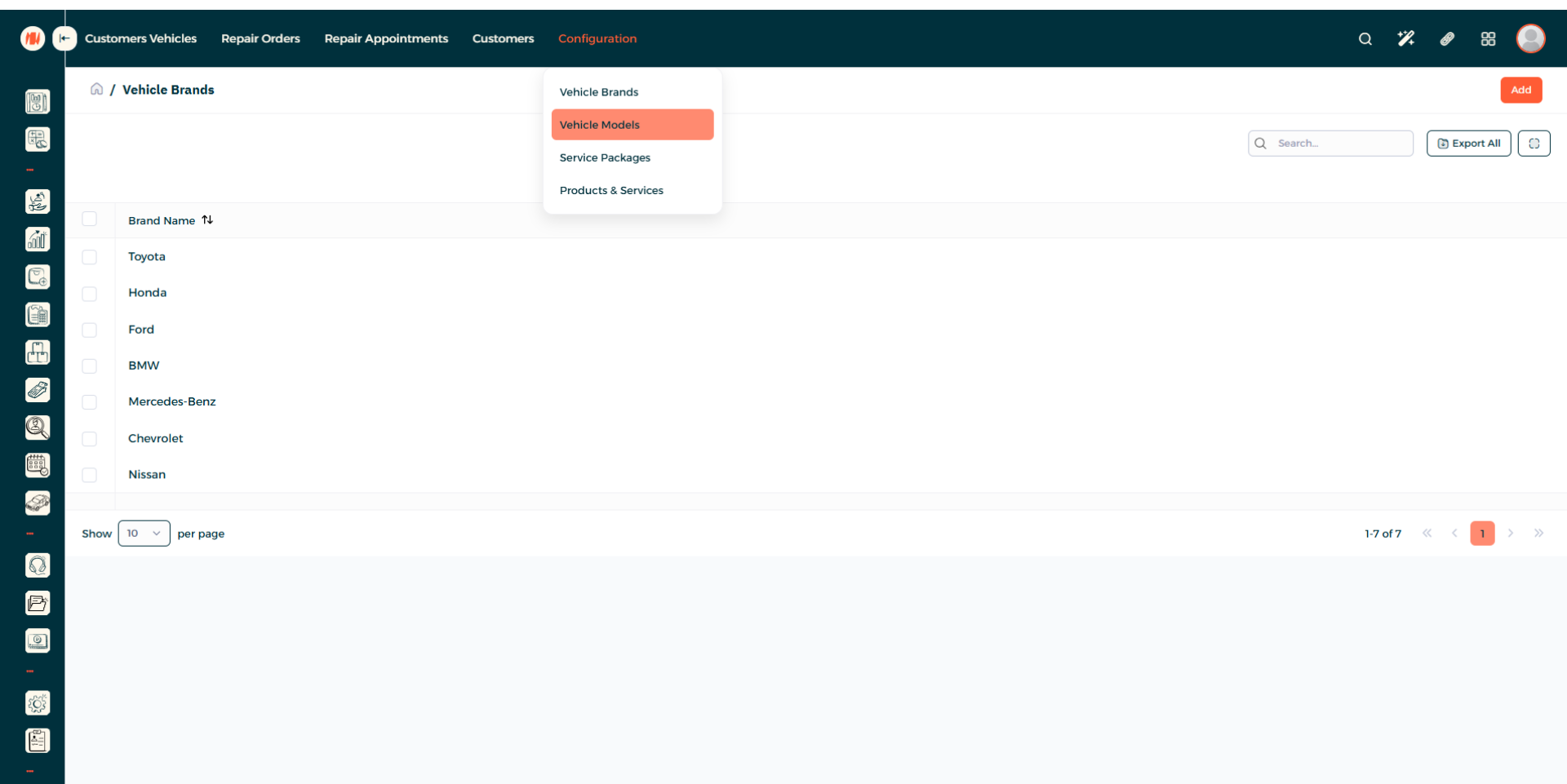
Step 7: Navigate to Vehicle Models
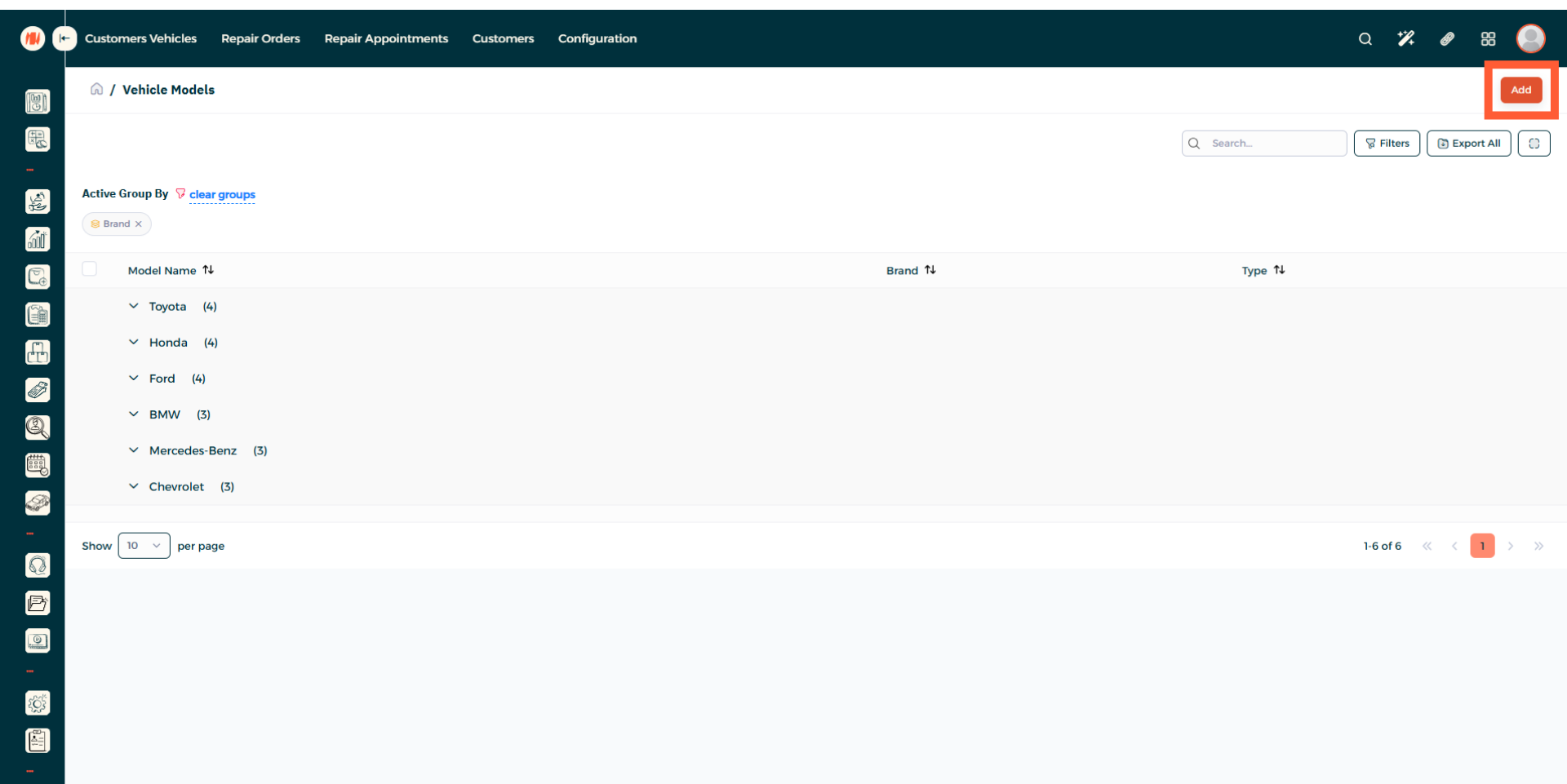
Step 8: Add a Vehicle Model
Step 9: Select Vehicle Brand
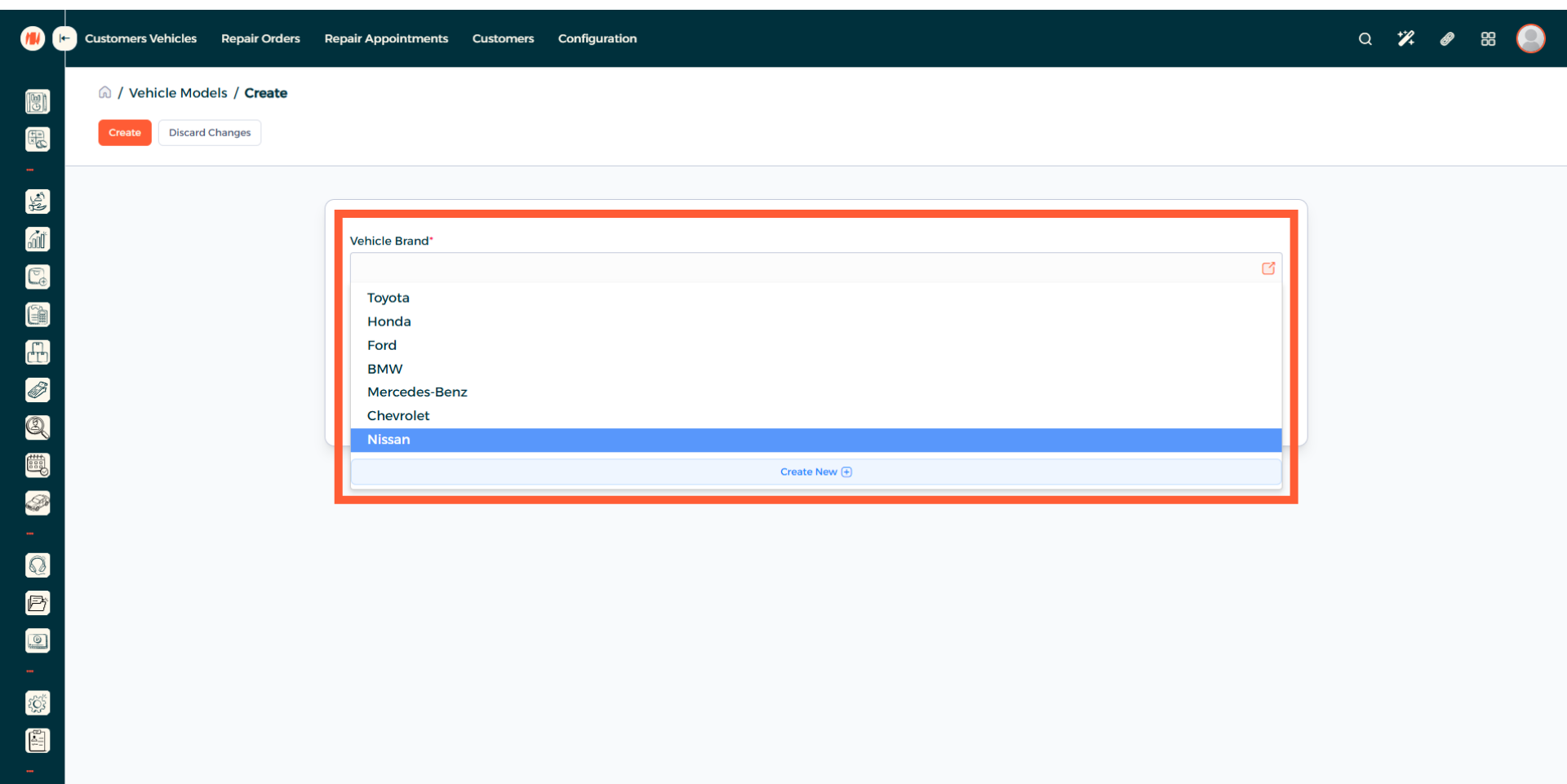
Step 10: Choose Vehicle Type
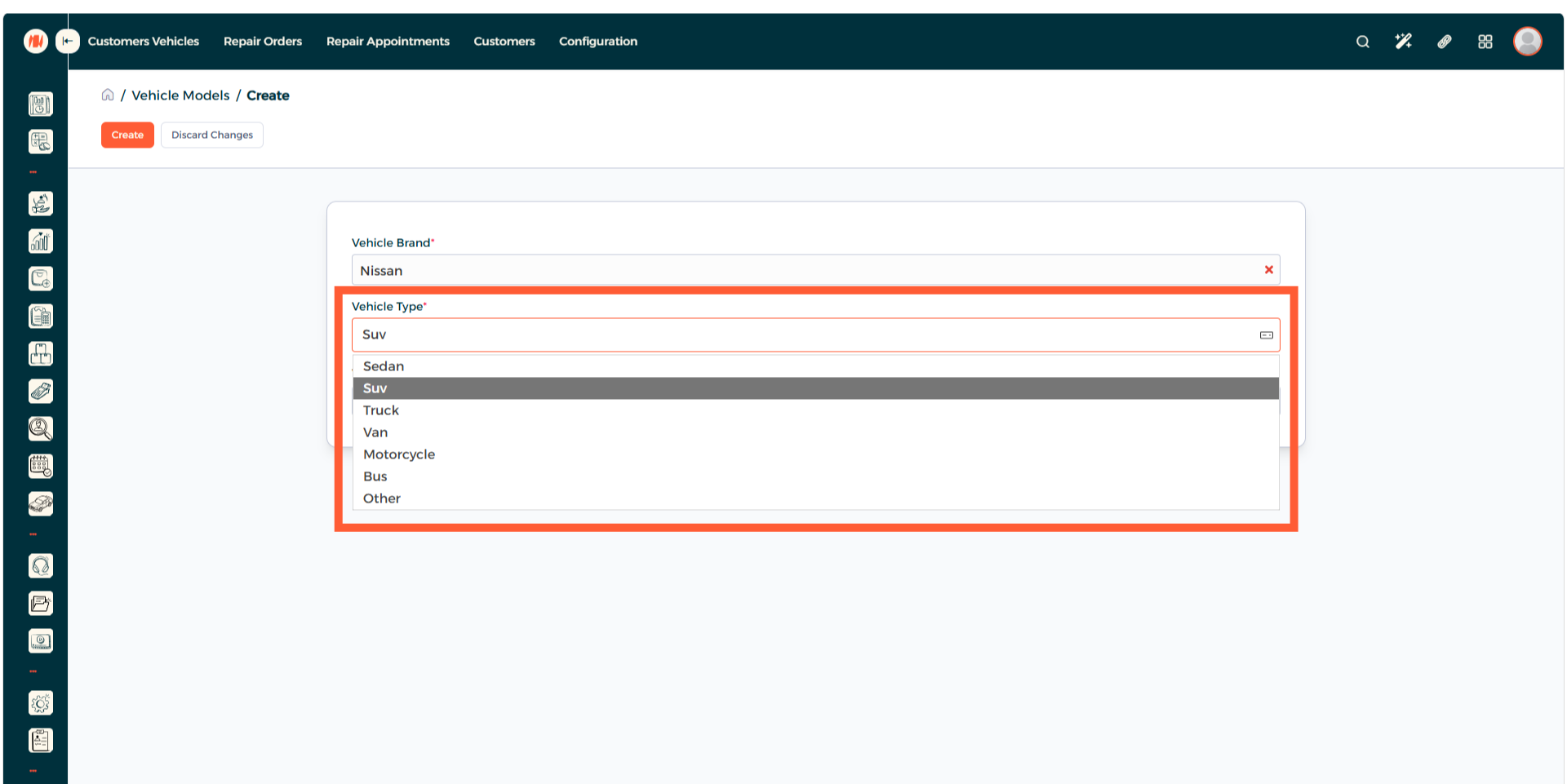
Step 11: Enter Vehicle Model Name
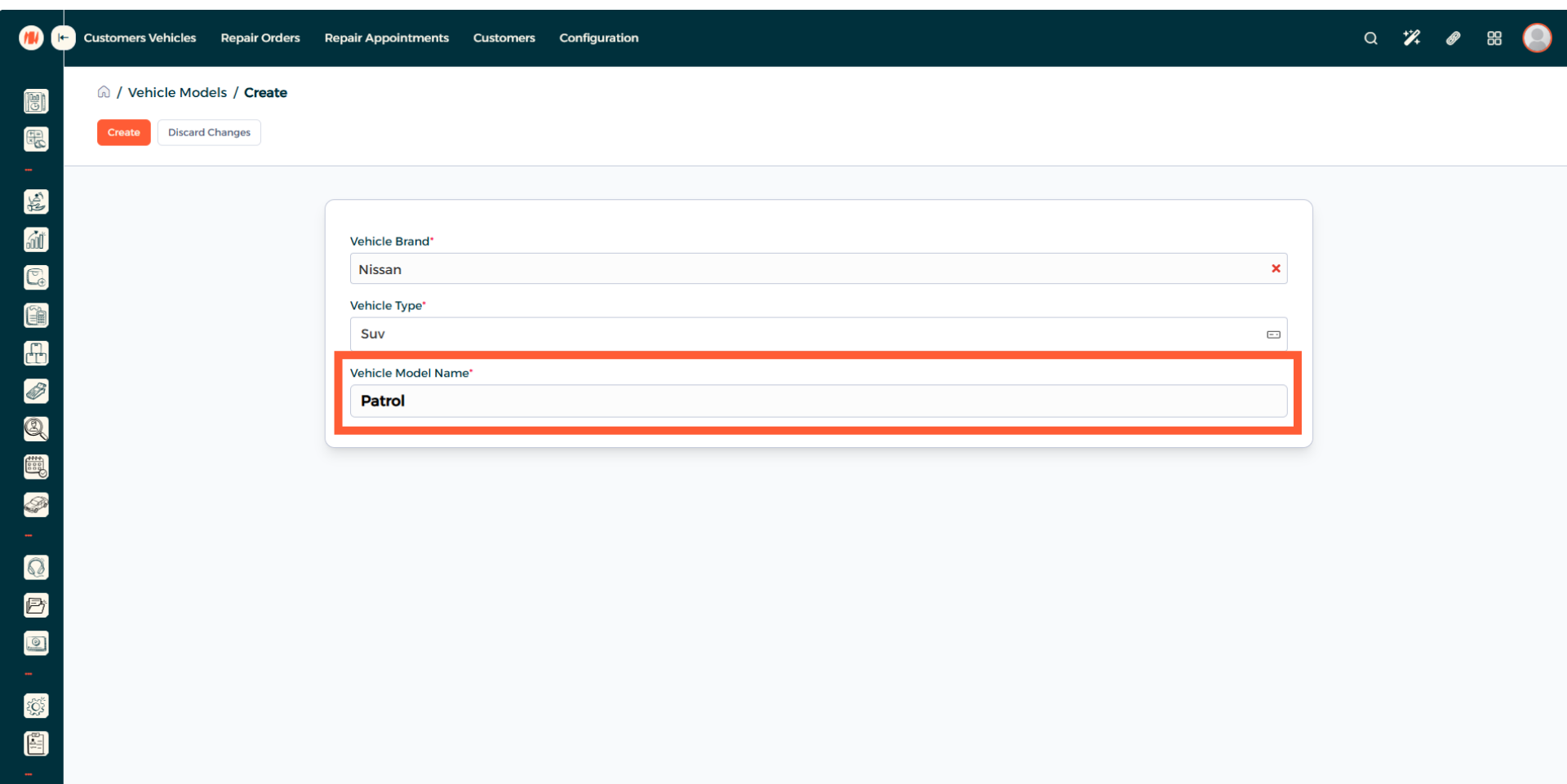
Step 12: Create Vehicle Model
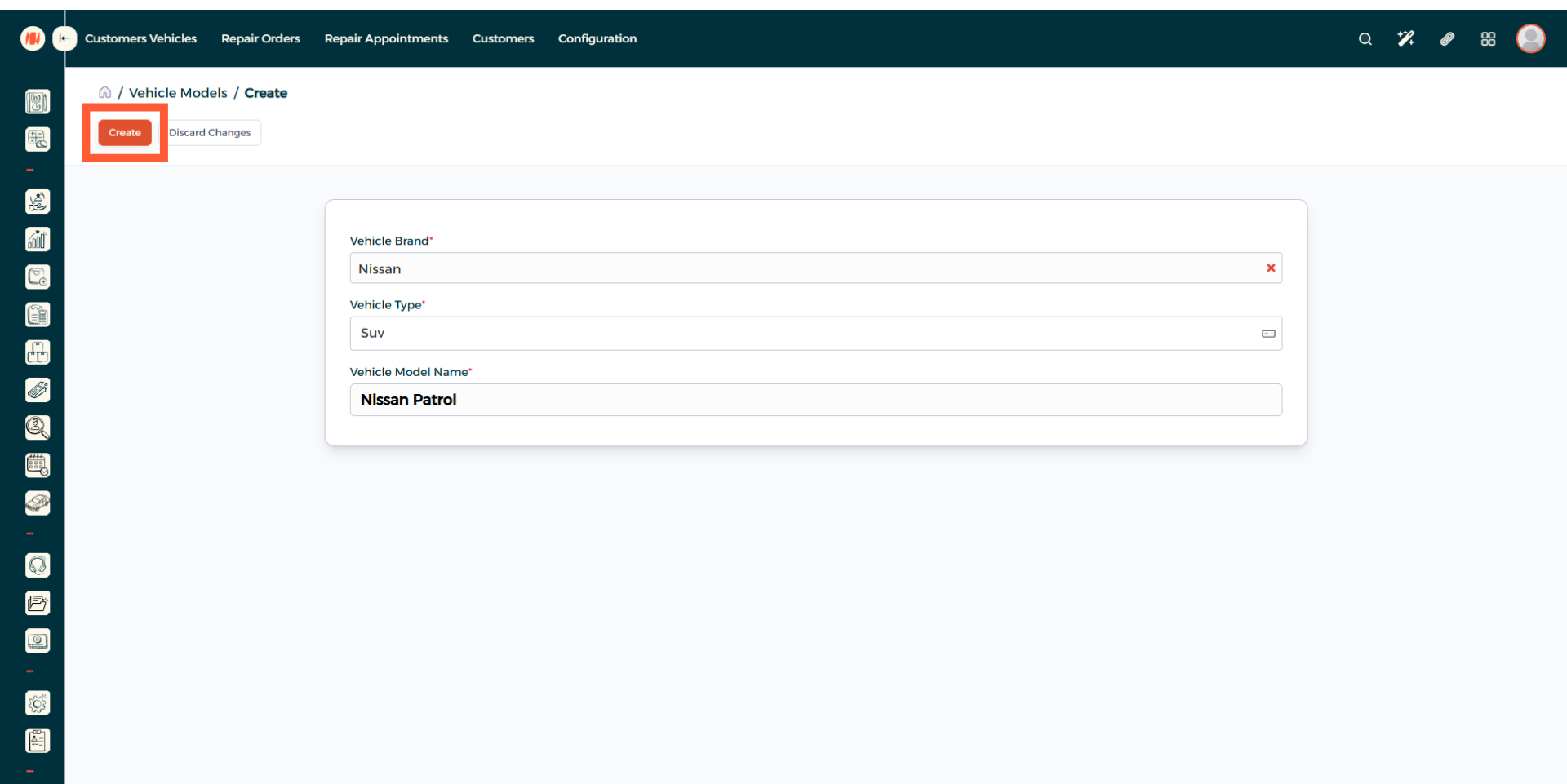
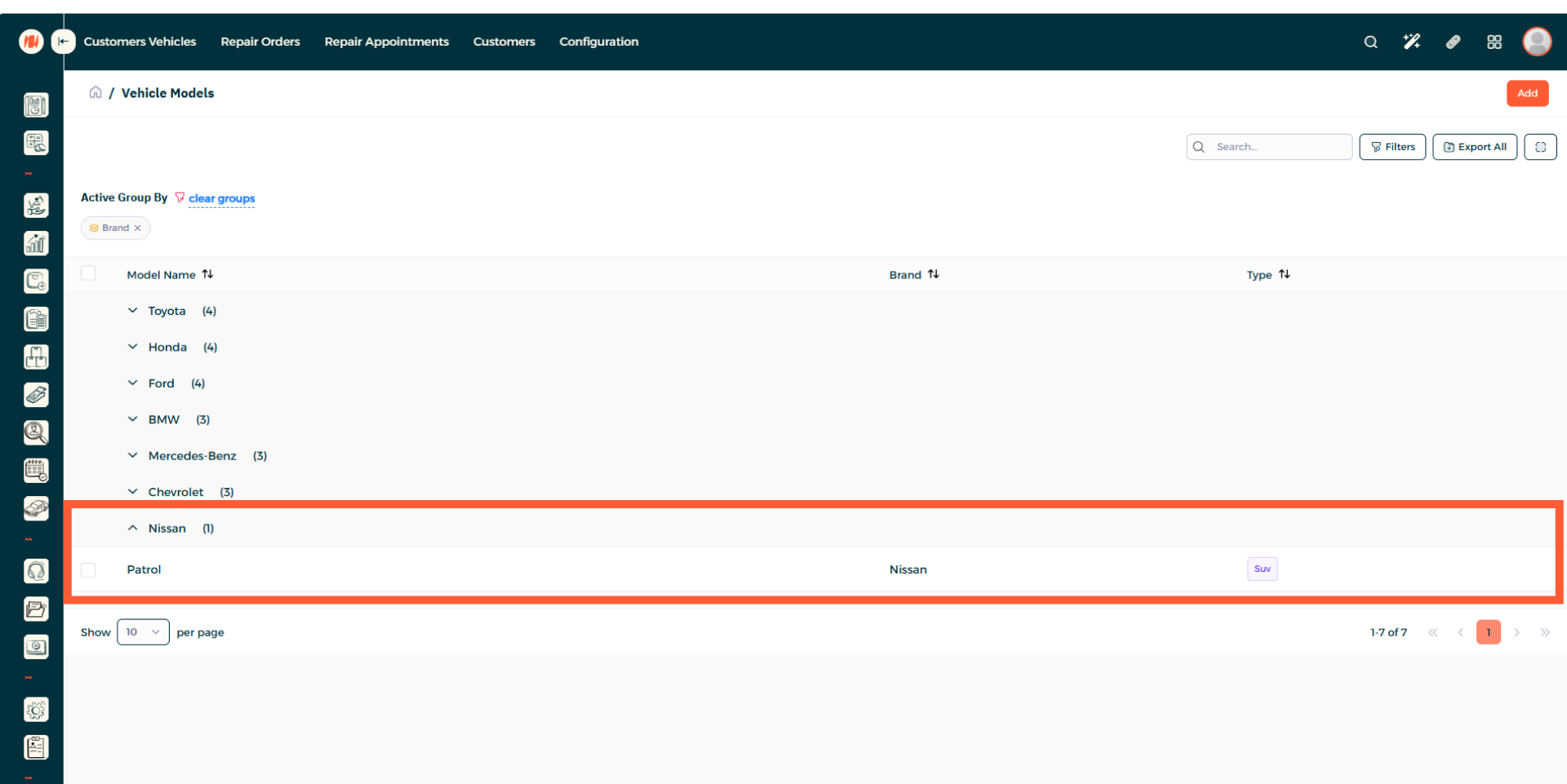
Step 13: View Vehicle Model Creation
That's it! By following these simple steps, you now know how to add Vehicle Brands and Models in Invent ERP.
Notes & Tips
- Be specific when naming models as many brands have similar names and multiple trims or options, so be clear to prevents selection errors.
- Double check for duplicate brand or model entries before adding new ones to avoid confusion and issues.
FAQ
Q: Can I edit a vehicle brand or model after creating?
yes, go the vehicle brand page or vehicle model page. Then select what you want to edit and save your changes.