How to Manage Repair Orders for Garages, Workshops, and Service Centers
Learn how to create repair orders, track repair activities, manage costs, and monitor service progress.
Step-by-Step Process
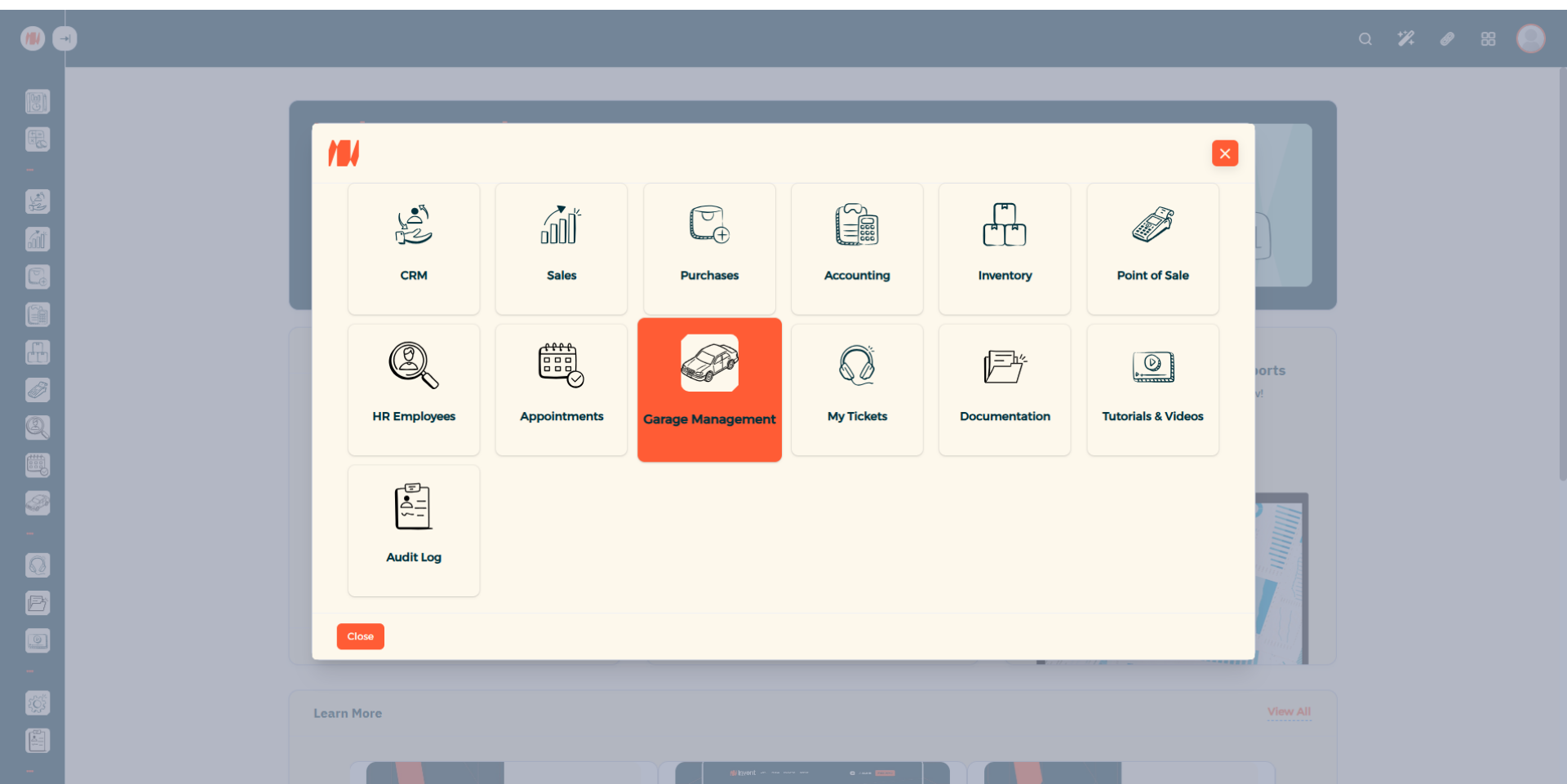
Step 1: Navigate to Garage Management
From the Main Menu, look at the top right corner then click on All apps. Then Select Garage Management.
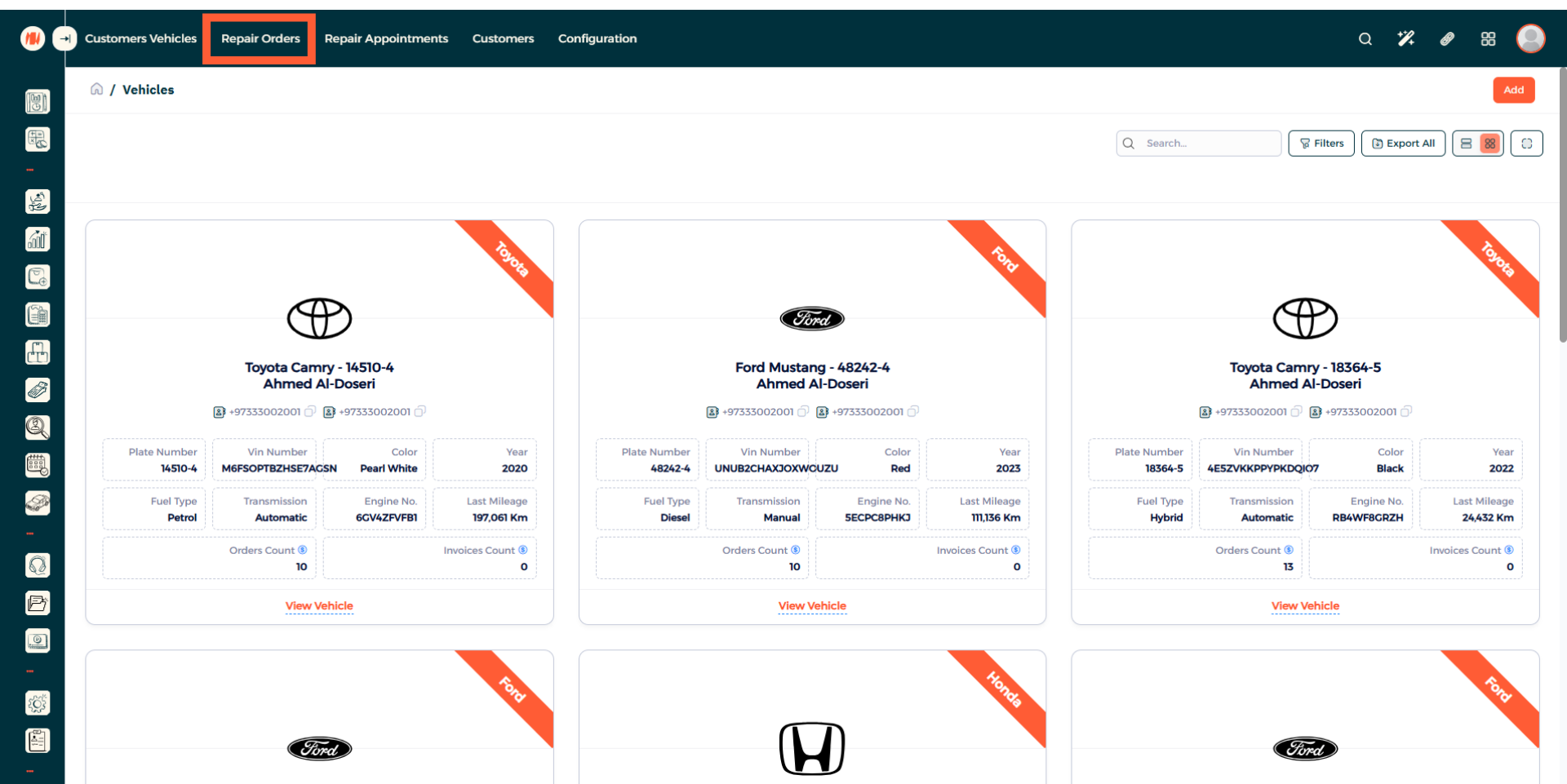
Step 2: Navigate to Repair Orders
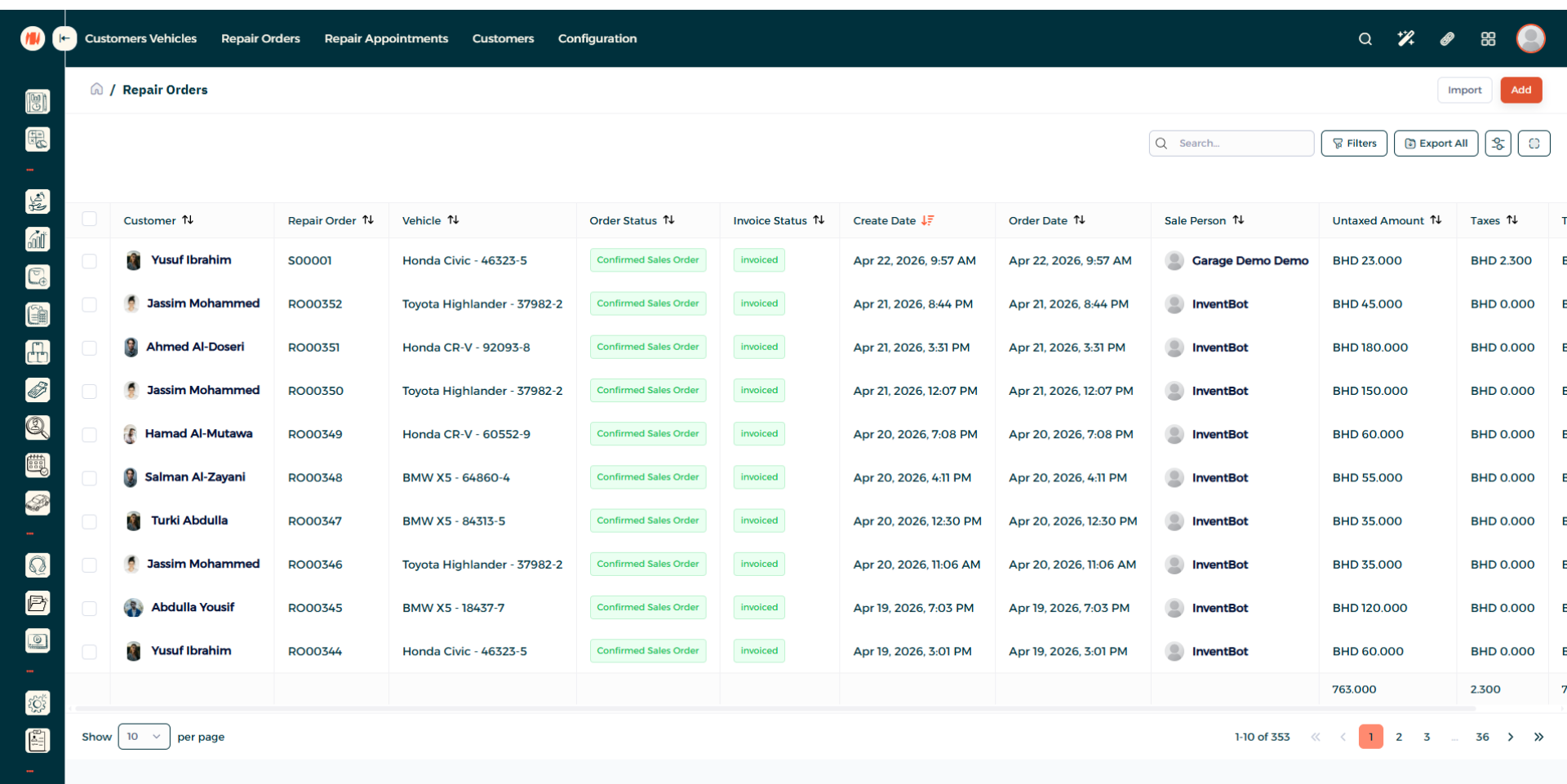
Step 3: Add a Repair Order
When you arrive to the repair orders, press on add in the top right corner.
Step 4: Create a Repair Order
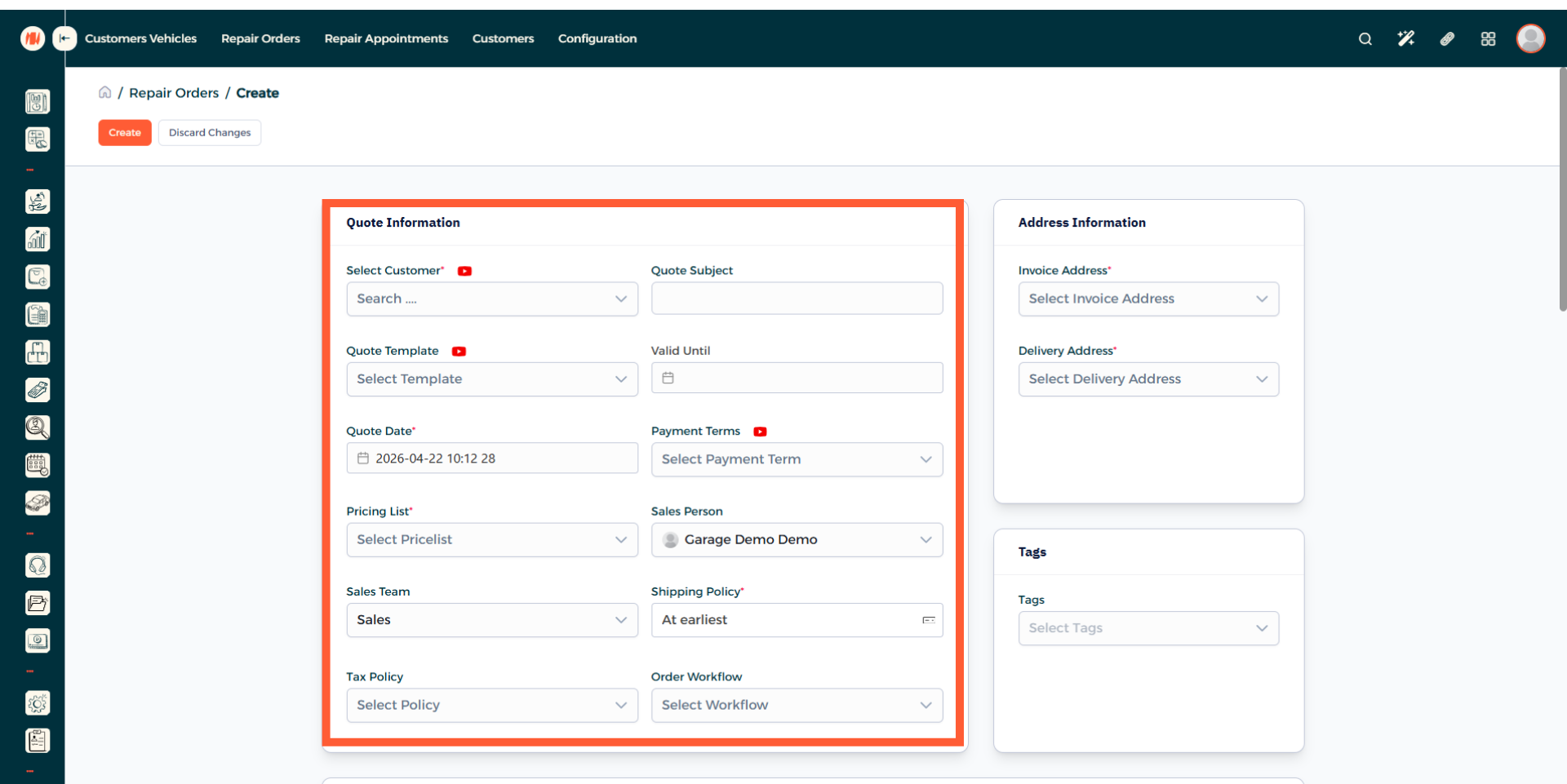
Step 5: Select customer
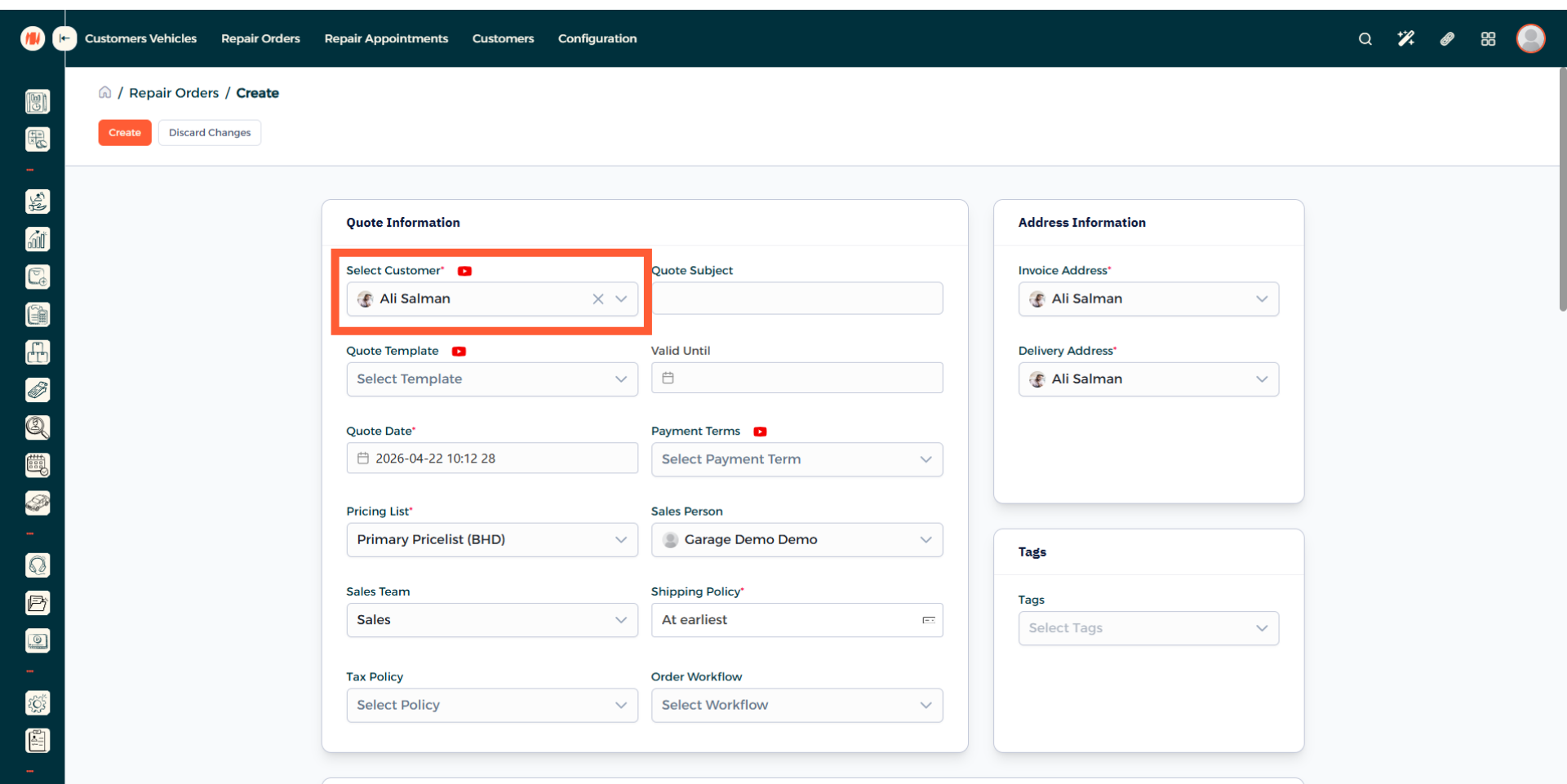
Step 6: Add a Quote Template
Add a quote template, this speeds up quoting and avoids re-entering details every time. If you do not have one you can create one.
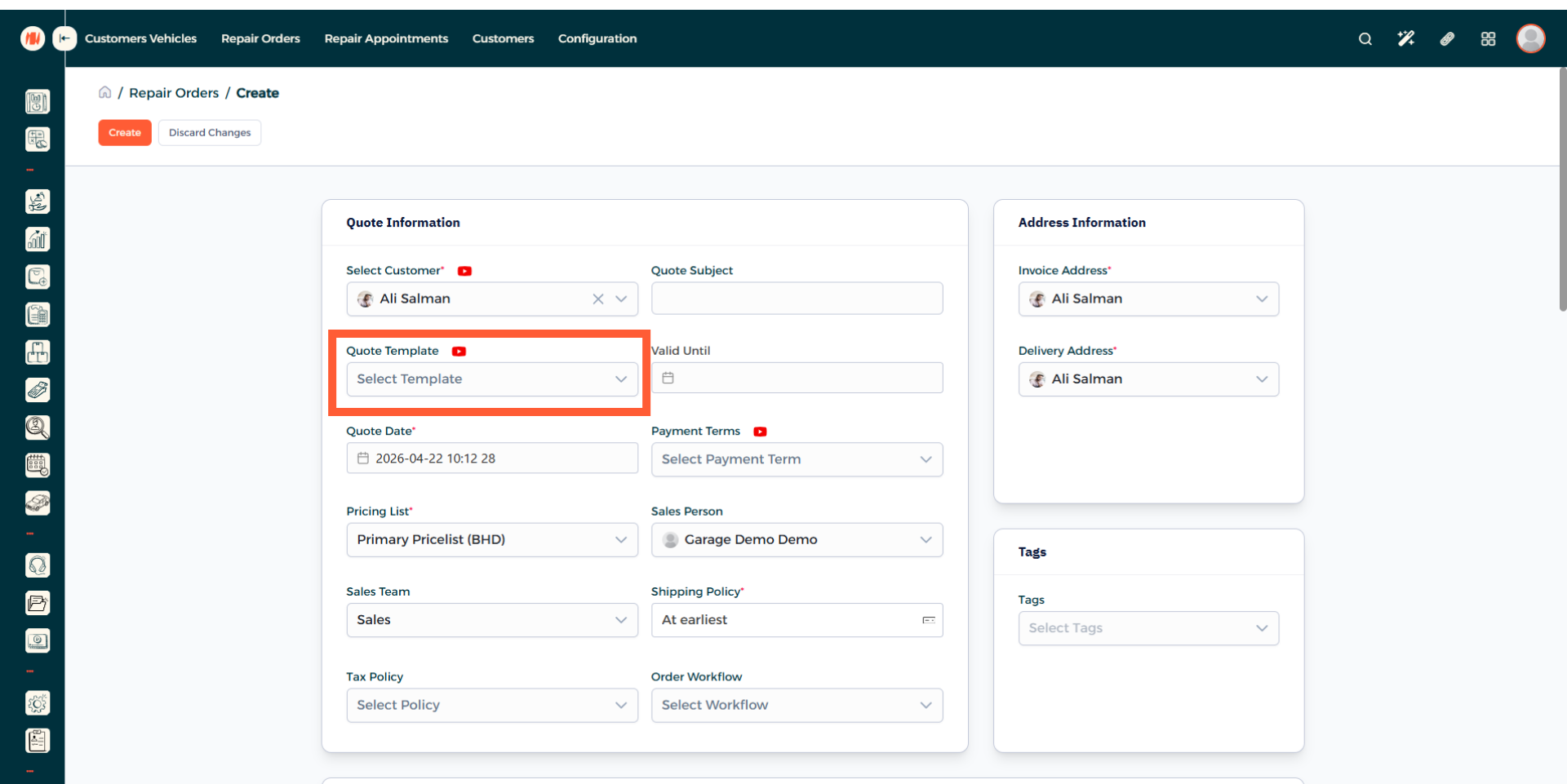
Step 7: Select Vehicle
This field will be filled automatically based off the customer you chose. but if the customer has multiple vehicles, select the correct one.
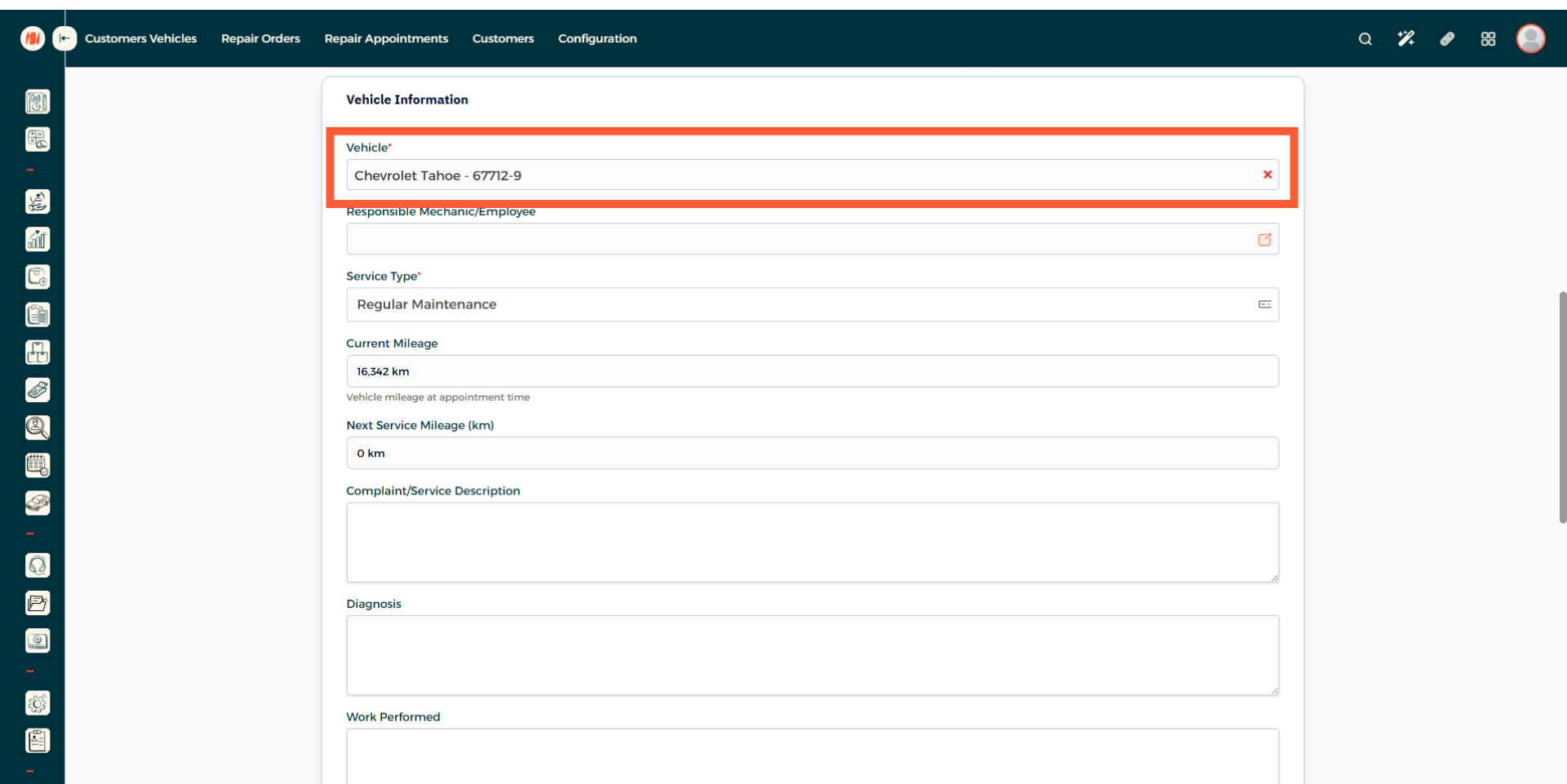
Step 8: Choose an Employee
Pick the specific employee that will complete the repair order.
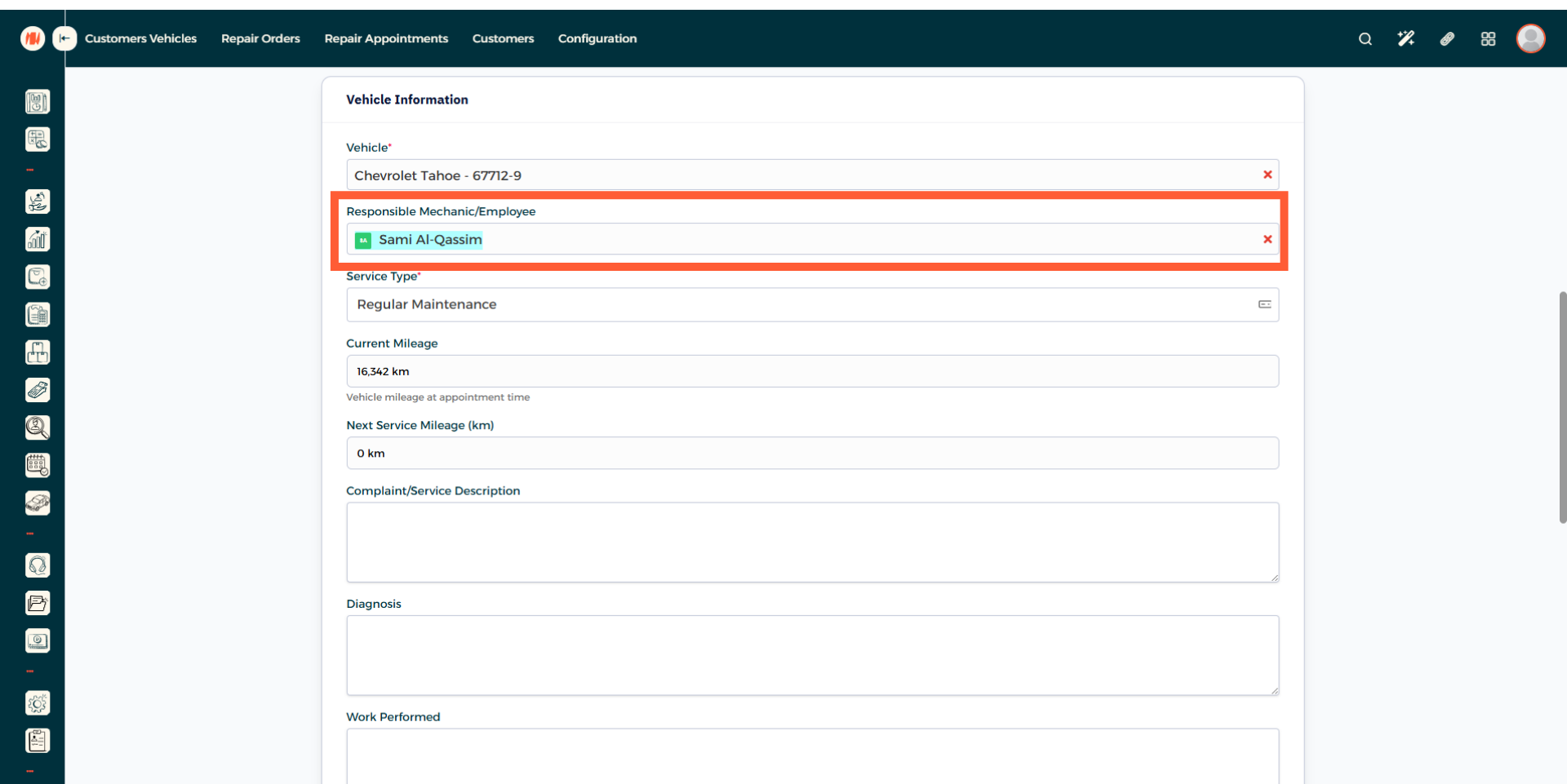
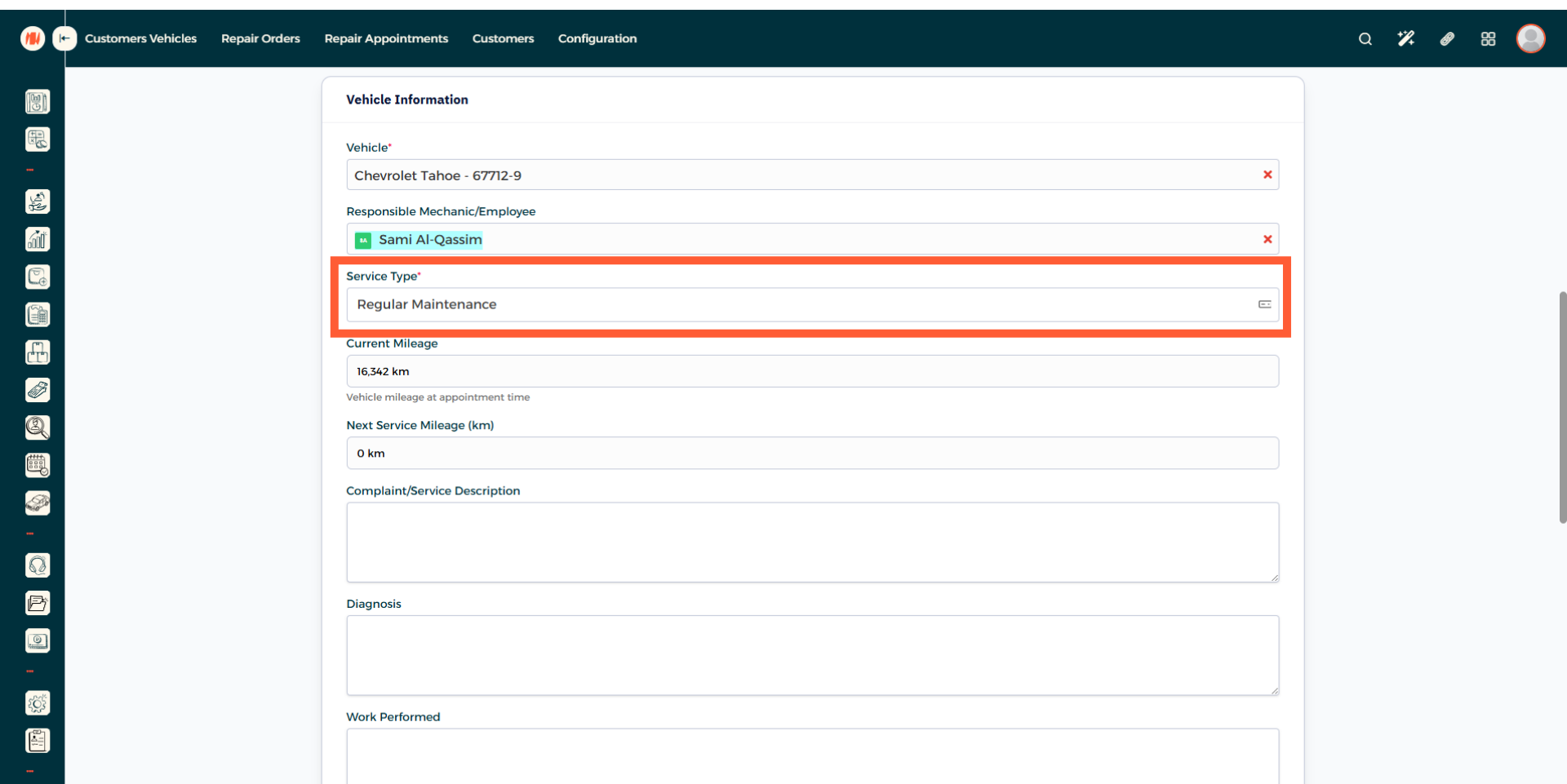
Step 9: Select Service Type
Step 10: Fill out Information
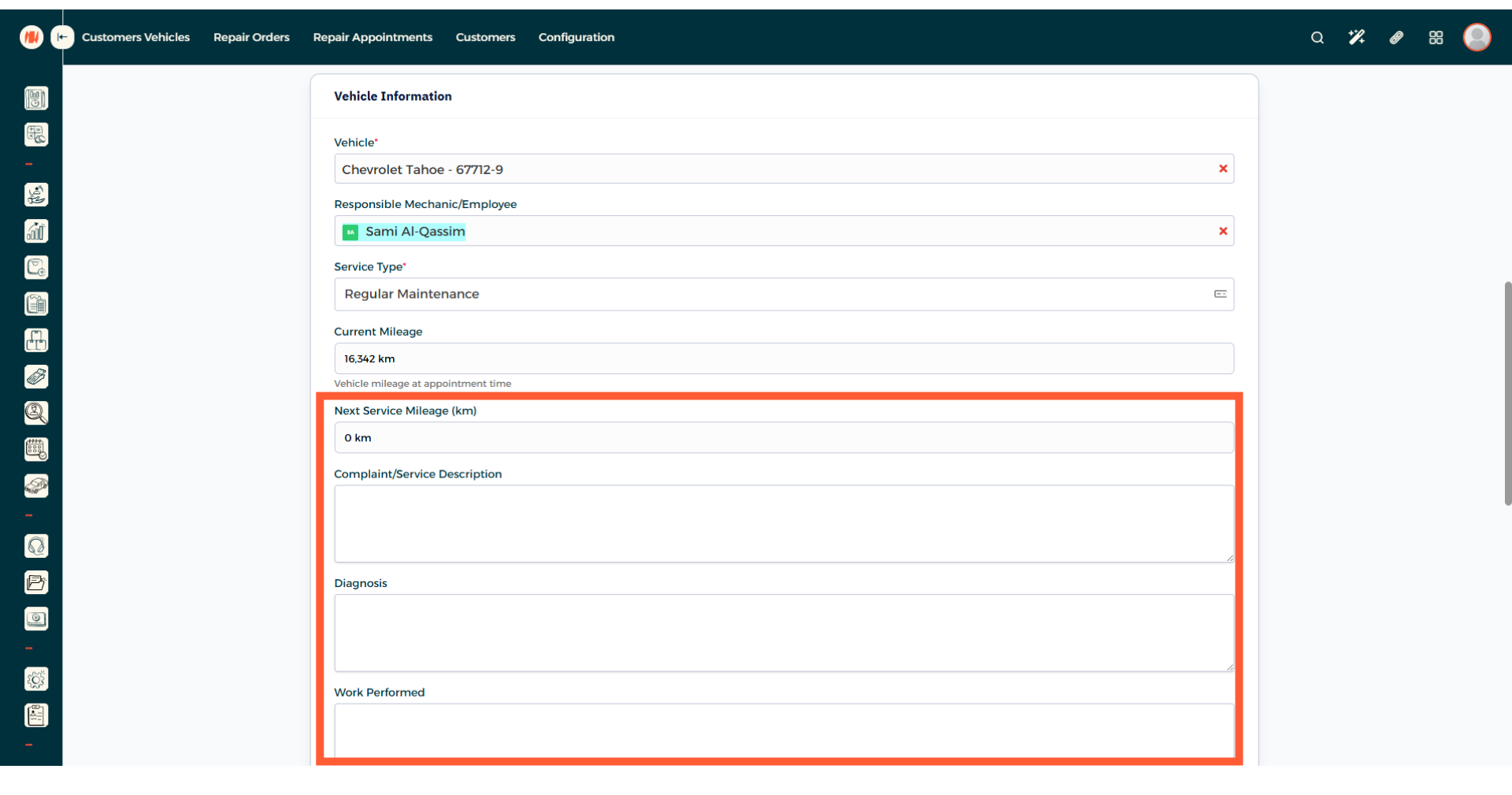
Finish this step by adding the next service mileage. If applicable, add the customer's complaints, your diagnosis, and the work performed.
Step 11: Add Quote Items
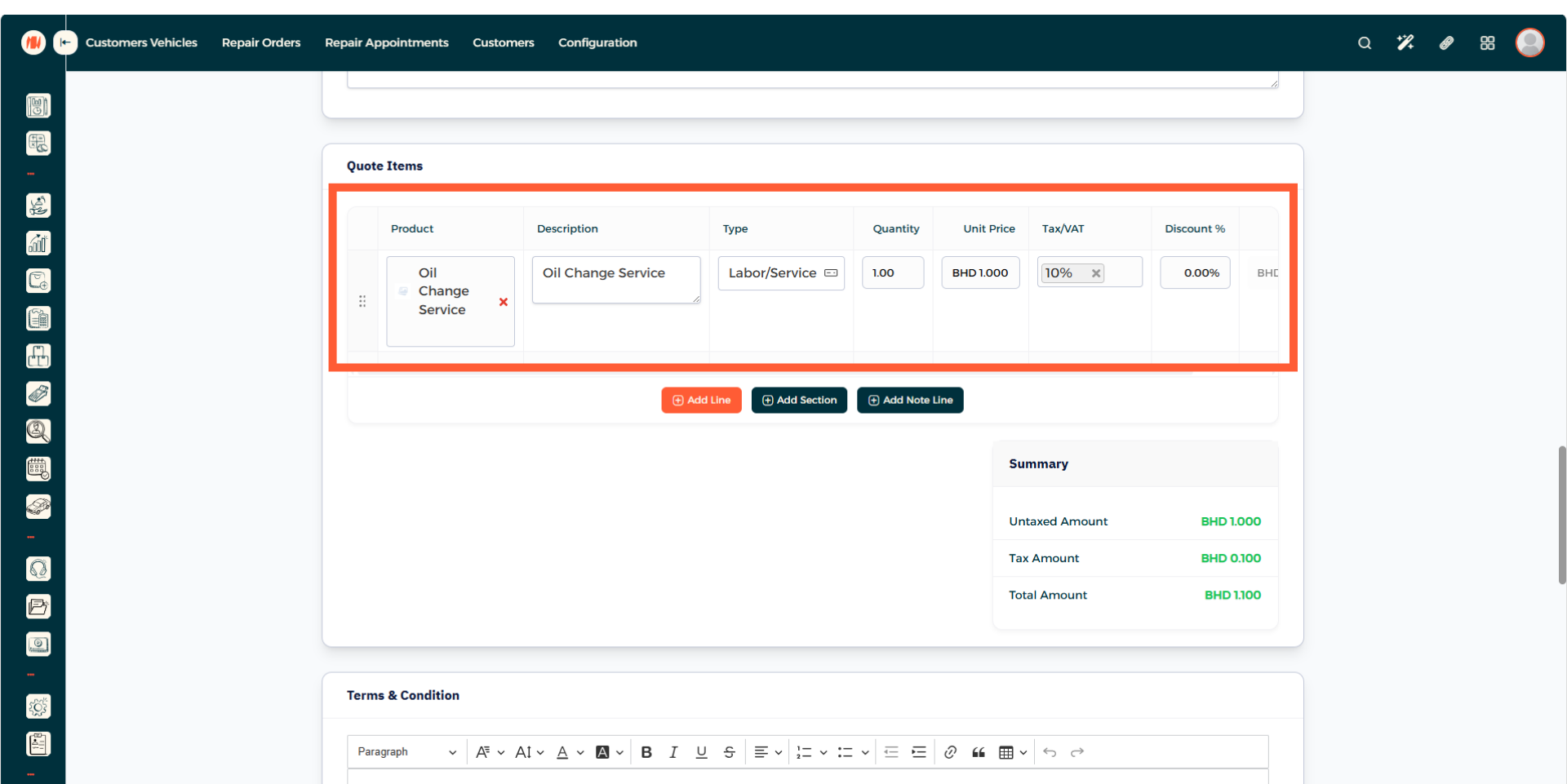
Add any products or services that are required to complete the repair order.
Step 12: Repair Order Creation
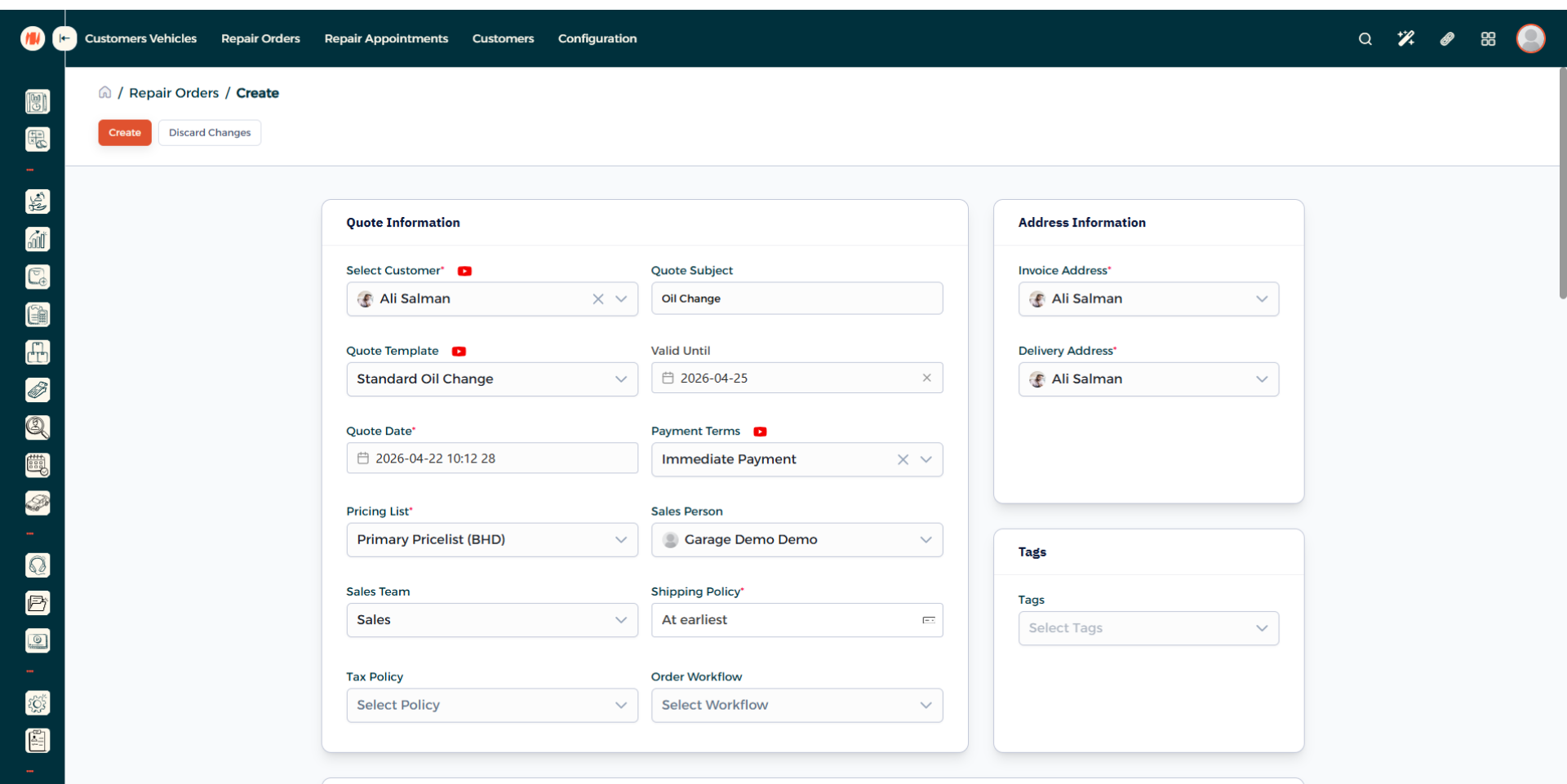
Review all the information, then when everything looks good create the repair order.
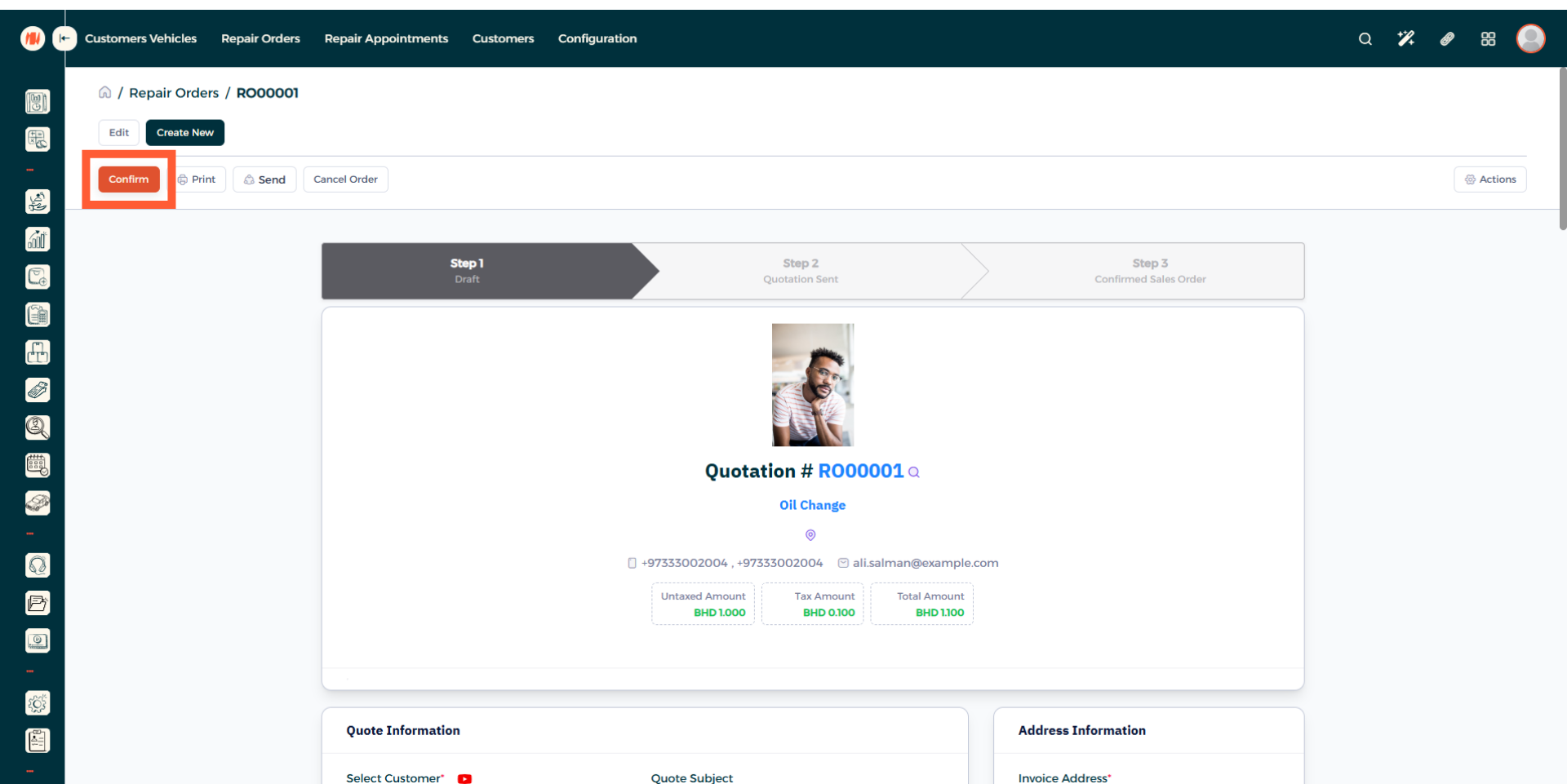
Step 13: Confirm Repair Order
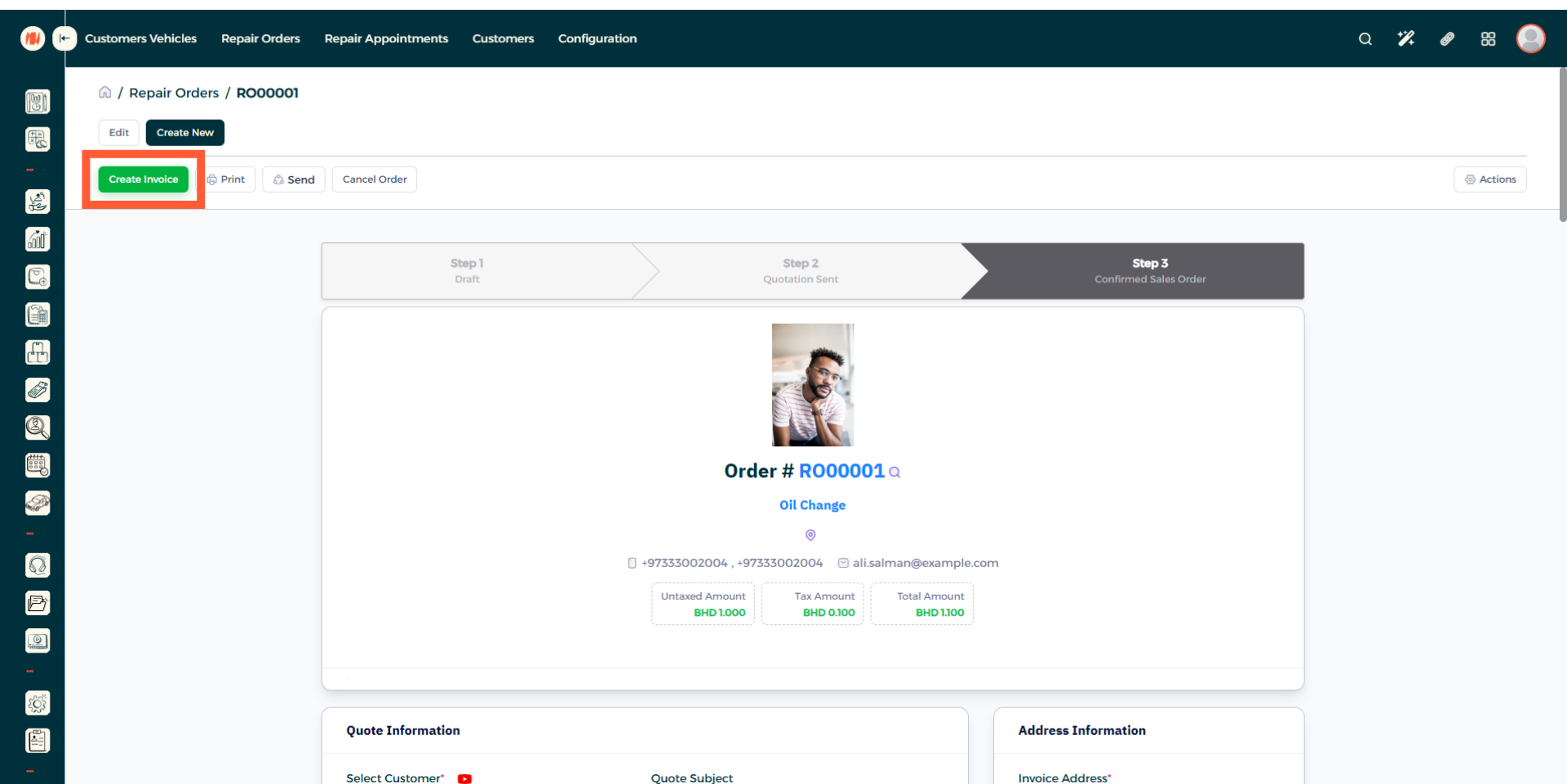
Step 14: Create Invoice
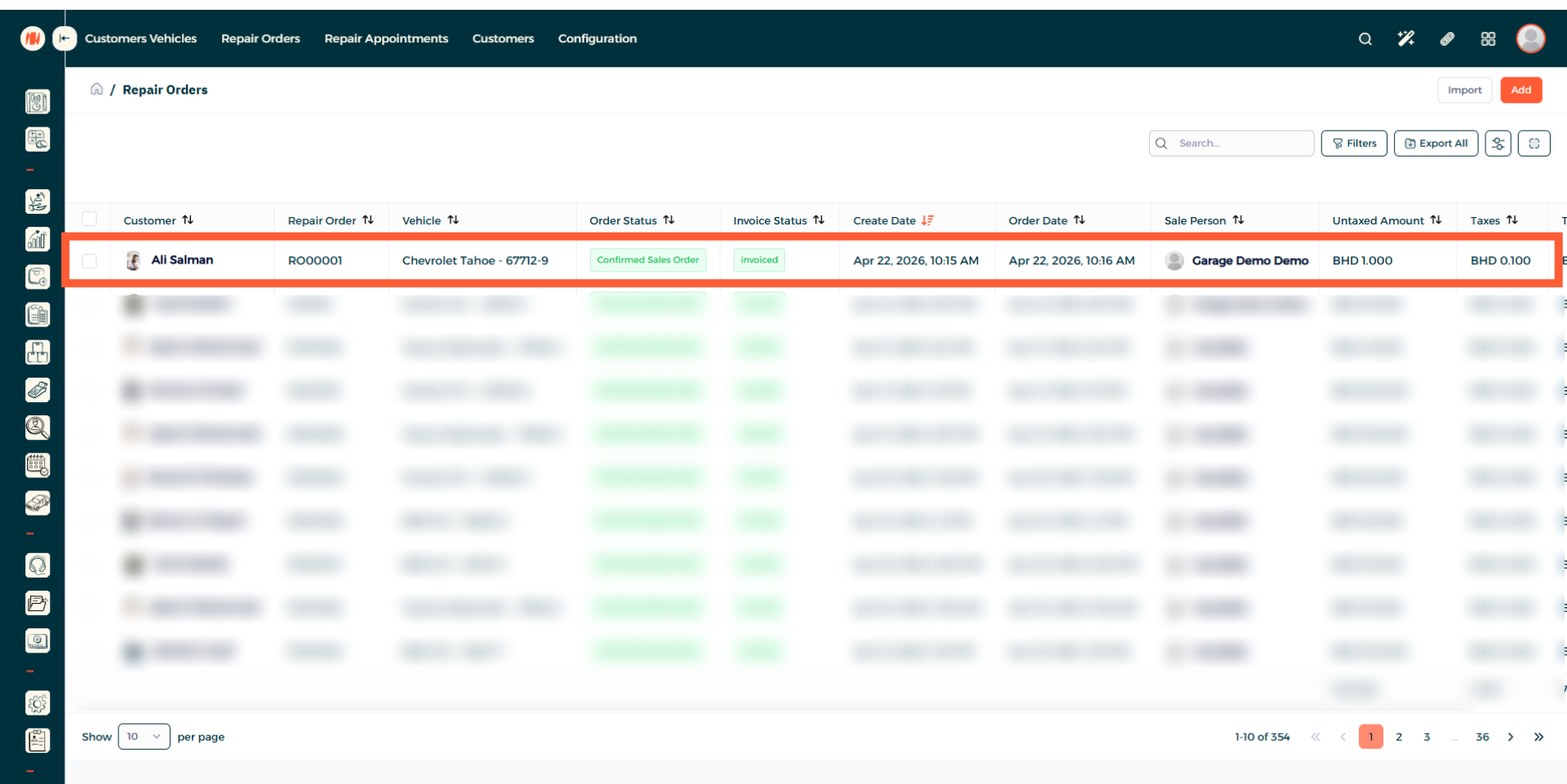
Step 15: Repair Order Complete
After following all these steps, you can see your completed repair order, alongside status and date.
Notes & Tips
- Double check owner and vehicle details. Ensures repairs are billed correctly and communications reach the right customer.
- Use clear naming for repair orders, it makes finding and filtering jobs faster and reduces errors.
FAQ
Q: How do I find a repair order?
Search by order number, vehicle registration, or customer name in the Repair Orders page.
Q: How do I know the repair costs?
It's simple, just create a repair order, add parts and labor needed to complete the job and then the total will be showcased automatically.